AppLovin MAX mediation
This article shows you how to deliver Teads ads in your application using the AppLovin Mediation adapter.
The official Teads SDK sample application includes working AppLovin MAX integrations. Use it for implementation examples and as a reference while you set up this adapter.
Prerequisites
- Platform: iOS 14+
- Xcode: 26.2+
- Built with Swift 6.2.3
- AppLovin SDK: 12.3.1+
Installation
Before installing the Teads AppLovin adapter, you will need to integrate AppLovin SDK into your application.
CocoaPods
If your project is managing dependencies through CocoaPods, you just need to add this pod in your Podfile.
Using CocoaPods for the Teads AppLovin mediation plugin automatically imports the Teads inApp SDK framework.
- Add Pod named TeadsAppLovinAdapter your Podfile:
pod 'TeadsAppLovinAdapter', '~> 6.2'
- Run the following to install the adapter in your project.
$ pod install --repo-update
- Follow the Create a custom Network step below to finish the integration.
Swift Package Manager
SPM is a tool for managing the distribution of Swift code. It’s integrated with the Swift build system to automate the process of downloading, compiling, and linking dependencies.
Installing from Xcode
- Add a package by selecting
File→Add Packages…in Xcode’s menu bar. - Search for the Teads iOS SDK using the repo's URL:
https://github.com/teads/TeadsSDK-iOS
- Next, set the Dependency Rule to be
Up to Next Major Versionand specify6.2.1 < 7.0.0. - Choose the Teads product that you want to be installed in your app:
TeadsAppLovinAdapter - Follow the Create a custom Network step below to finish the integration.
Alternatively, add Teads to your Package.swift manifest
- Add it to the
dependenciesof yourPackage.swift:
dependencies: [
    .package(url: "https://github.com/teads/TeadsSDK-iOS", .upToNextMajor(from: "6.2.1"))
]
- in any target that depends on a Teads product, add it to the
dependenciesarray of that target:
.target(
  name: "MyTargetName",
  dependencies: [
    .product(name: "TeadsAppLovinAdapter", package: "Teads"),
  ]
),
- Follow the Create a custom Network step below to finish the integration.
Create a custom Network
In order to display a Teads ad using AppLovin, you need to create a custom Network.
| Name | Value |
|---|---|
| Network Type | SDK |
| Custom Network Name | Teads |
| iOS Adapter Class Name | TeadsMediationAdapter |
Formats
Pick the ad format you are integrating. Each format has its own setup.
- Media
- Native Ad
Enable Teads Custom Network in your ad unit
Edit your banner or MREC adUnit on AppLovin dashboard and enable it
Both Banner and MREC are supported. AppLovin provides an auto-refreshing feature that isn't compatible with Teads. We strongly recommend disabling it.
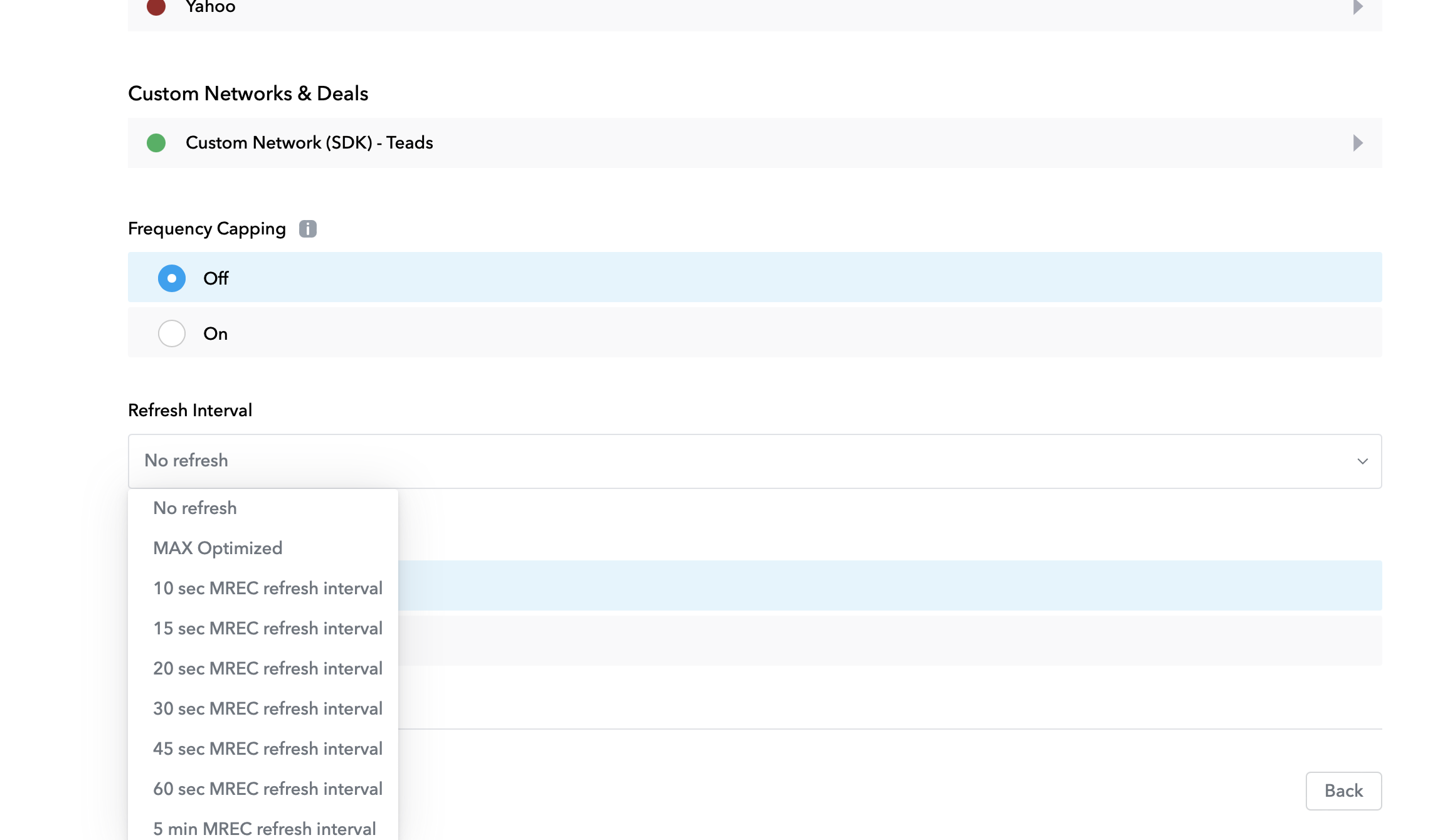
For MREC, you can set the refresh interval to No Interval, but for Banner you can't avoid this feature. In that case, set the max refresh interval.
See the SDK documentation for more test PIDs serving different creative formats.
| Name | Value |
|---|---|
| Placement ID | #PID — use 84242 for Media testing. Production PIDs come from your account manager. |
Integration
See the sample ViewController from our iOS GitHub repository.
You have the ability to pass extra parameters in order to customize third-party ad network settings. For Teads, you need to pass TeadsAdapterSettings.
- Register your
TeadsAdapterSettingsintoMAAdViewusing methodregister.
- Swift
- Objective-C
let adSettings = TeadsAdapterSettings { settings in
    settings.pageUrl("https://example.com/article1")
}
let bannerView = MAAdView(adUnitIdentifier: APPLOVIN_AD_UNIT_ID)
bannerView.register(teadsAdSettings: adSettings)

bannerView.loadAd()
TeadsAdapterSettings *adSettings = [[TeadsAdapterSettings alloc] initWithBuild:^(TeadsAdapterSettings *settings) {
    [settings pageUrl:@"https://example.com/article1"];
}];
MAAdView *bannerView = [[MAAdView alloc] initWithAdUnitIdentifier:APPLOVIN_AD_UNIT_ID];
[bannerView registerWithTeadsAdSettings:adSettings];

[bannerView loadAd];
Ad Resizing
The code below must be implemented to enable the resizing of the mediated ad slot making possible the rendering of square and vertical creatives.
Register to ad resizing through TeadsAdapterSettings by providing your delegate class and the MAAdView that need to be resized
- Swift
- Objective-C
var bannerView: MAAdView!
@IBOutlet weak var slotHeight: NSLayoutConstraint! // set to 0 on InterfaceBuilder

let adSettings = TeadsAdapterSettings { settings in
    settings.registerAdView(bannerView, delegate: self)
}
@property (nonatomic, strong) MAAdView *bannerView;
@property (nonatomic, weak) IBOutlet NSLayoutConstraint *slotHeight; // set to 0 on InterfaceBuilder

TeadsAdapterSettings *adSettings = [[TeadsAdapterSettings alloc] initWithBuild:^(TeadsAdapterSettings *settings) {
    [settings registerAdView:self.bannerView delegate:self];
}];
Simply conform to the Teads delegate TeadsMediatedAdViewDelegate and implements the didUpdateRatio function.
You can implement delegate as below, we keep internally a weak reference to it, so it's not retained when you don't need it anymore:
- Swift
- Objective-C
func didUpdateRatio(_ adView: UIView, adRatio: TeadsAdRatio) {
    let height = adRatio.calculateHeight(for: slotView.frame.width) // call calculateHeight
    slotHeight.constant = height //update NSLayoutConstraint of the slot
}
- (void)didUpdateRatio:(UIView *)adView adRatio:(TeadsAdRatio *)adRatio {
    CGFloat height = [adRatio calculateHeightForWidth:self.slotView.frame.size.width]; // call calculateHeight
    self.slotHeight.constant = height; //update NSLayoutConstraint of the slot
}
This native implementation is specifically designed to fit feed views. You can customize the ad view to look like the other cells around, to offer a more immersive experience.
Enable Teads Custom Network in your Native ad unit
Edit your Native adUnit on AppLovin dashboard and enable it
See the SDK documentation for more test PIDs serving different creative formats.
| Name | Value |
|---|---|
| Placement ID | #PID — use 124859 for Native testing. Production PIDs come from your account manager. |
Integration
See the sample ViewController from our iOS GitHub repository.
You're responsible for positioning the ad's elements: title label, main image, call to action button, and so on. Keep them visible, without any overlay (even a transparent one), or the visibility algorithm considers the ad view hidden.
Interface
- Add a new
AppLovinNativeAdViewclass, this class must inherit fromMANativeAdView
class AppLovinNativeAdView: MANativeAdView {

}
- Add a new AppLovinNativeAdView xib file with Custom Class set to
AppLovinNativeAdView - Set up the layout with UIKit elements (UILabel, UIButton, UIView, UIImageView). Set a different tag value to each element following AppLovin instructions Bind UI Components
NativeAdView Builder
- Instantiate
AppLovinNativeAdViewfrom xib Use this static xib loader helper or your own implementation
extension UIView {
  static func loadNib(nibName name: String? = nil) -> Self? {
        let nibName = name ?? String(describing: Self.self)
        let bundle = Bundle(for: Self.self)
        let nib = UINib(nibName: nibName, bundle: bundle)
        return nib.instantiate(withOwner: self, options: nil).first as? Self
    }
}
- Bind views using defined tags
  nativeAdView = AppLovinNativeAdView.loadNib()
  nativeAdView.bindViews(with: MANativeAdViewBinder { builder in
      builder.titleLabelTag = 1 // UILabel element
      builder.advertiserLabelTag = 2 // UILabel element
      builder.bodyLabelTag = 3 // UILabel element
      builder.iconImageViewTag = 4 // UIImageView element showing brand icon
      builder.optionsContentViewTag = 5 // UIView element showing adChoices
      builder.mediaContentViewTag = 6 // UIView element showing main content
      builder.callToActionButtonTag = 7 // UIButton element
  })
Load an Ad
- Instantiate adLoader
private var nativeAdLoader = MANativeAdLoader(adUnitIdentifier: #APP_LOVIN_AD_UNIT, sdk: ALSdk.shared()!)
You have the ability to pass extra parameters in order to customize third-party ad network settings. For Teads, you need to pass TeadsAdapterSettings.
- Register your
TeadsAdSettingsintoMANativeAdLoaderinstance usingregister(into:).
let nativeAdLoader = MANativeAdLoader(adUnitIdentifier: APPLOVIN_AD_UNIT_ID)

let teadsAdSettings = TeadsAdapterSettings { settings in
    settings.enableDebug()
    settings.pageUrl("https://example.com/article1")
}

nativeAdLoader.register(into: nativeAdLoader)
- Perform ad request
nativeAdLoader.nativeAdDelegate = self
nativeAdLoader.revenueDelegate = self
nativeAdLoader.loadAd(into: nativeAdView)
Store Ad (Sequence)
When implementing native in a tableView or collectionView we suggest adding MANativeAdView inside your sequence structure
private var elements = [MANativeAdView?]()

override func viewDidLoad() {
    super.viewDidLoad()

    (0..<8).forEach { _ in
        elements.append(nil) //nil reprensents all other data of cells
    }
    ...
}
implement MANativeAdDelegate protocol to handle storage process
func didLoadNativeAd(_ nativeAdView: MANativeAdView?, for _: MAAd) {
    ads.insert(nativeAdView, at: position)
    let indexPaths = [IndexPath(row: position, section: 0)]
    tableView.insertRows(at: indexPaths, with: .automatic)
}
Ad Binding
func tableView(_ tableView: UITableView, cellForRowAt indexPath: IndexPath) -> UITableViewCell {
    if let nativeAdView = elements[indexPath.row] {
        guard let cell = tableView.dequeueReusableCell(withIdentifier: teadsAdCellIndentifier, for: indexPath) as? NativeTableViewCell else {
            return UITableViewCell()
        }

        nativeAdView.translatesAutoresizingMaskIntoConstraints = false
        cell.nativeAdView.addSubview(nativeAdView)
        nativeAdView.topAnchor.constraint(equalTo: cell.contentView.topAnchor).isActive = true
        nativeAdView.bottomAnchor.constraint(equalTo: cell.contentView.bottomAnchor).isActive = true
        nativeAdView.leadingAnchor.constraint(equalTo: cell.contentView.leadingAnchor).isActive = true
        nativeAdView.trailingAnchor.constraint(equalTo: cell.contentView.trailingAnchor).isActive = true

        return cell
    }
    ...
}
Event Monitoring
The AppLovin SDK provides a delegate to monitor events during the ad life cycle and help you customize the ad experience in your apps.
protocol MANativeAdDelegate {
    // When an event click has been fired
    func didClickNativeAd(_ ad: MAAd)
    ...
}
Mediation settings
Find the full settings list in Settings Configuration — TeadsAdapterSettings.
Checklist
- ✅ Ensure Brand Safety is enabled
- ✅ Ensure you comply with privacy legal requirements (GDPR/CCPA/GPP)
- ✅ Comply with app-ads.txt
- ✅ Implement proper error handling
- ✅ Enable ad view resizing for Media
- ✅ Test different PIDs with various ad formats and sizes. See Test PIDs and Configurations