Validation Tool
Covers the Media format only.
What the Validation Tool Checks
✅ Validates the overall ad integration and display within your content
✅ Checks that creatives are correctly running
✅ Validates Teads tracking
✅ Validates Brand Safety is enabled
✅ Validates User consent retrieval
✅ Validates app-ads.txt setup
✅ Validates support for creative resize
The Validation Tool always serves the same landscape video. PIDs do not change the creative; the test still evaluates your integration.
Remove this setting before going into production. Report anomalies or feedback on the support page.
Launch a Validation Session
1. Enable the validation mode on the Teads SDK
To enable validation mode, configure your ad settings with debug and validation mode enabled. For detailed configuration instructions, see the Settings Configuration page.
2. Build your app and open an article or a page that displays a Teads ad placement where the validation mode is activated
3. A popup will appear and show a URL
- Do not tap on Abort; it will cancel the validation test
- Copy the URL from the log tool on your IDE by filtering for
sdkvalidation.teads.tv - Open the URL in your desktop browser; do not attempt to open it on your mobile device
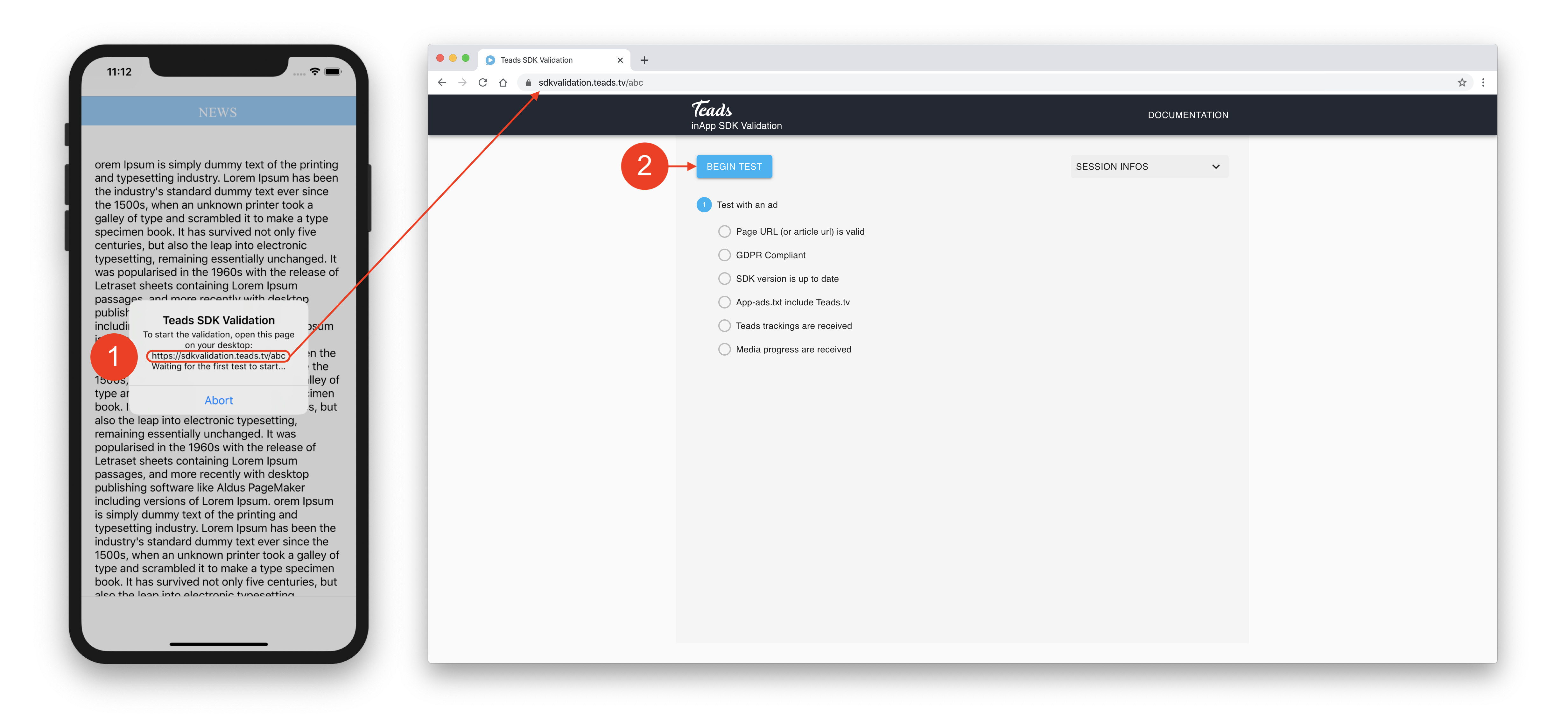
4. Follow these instructions:
- Click on BEGIN TEST:
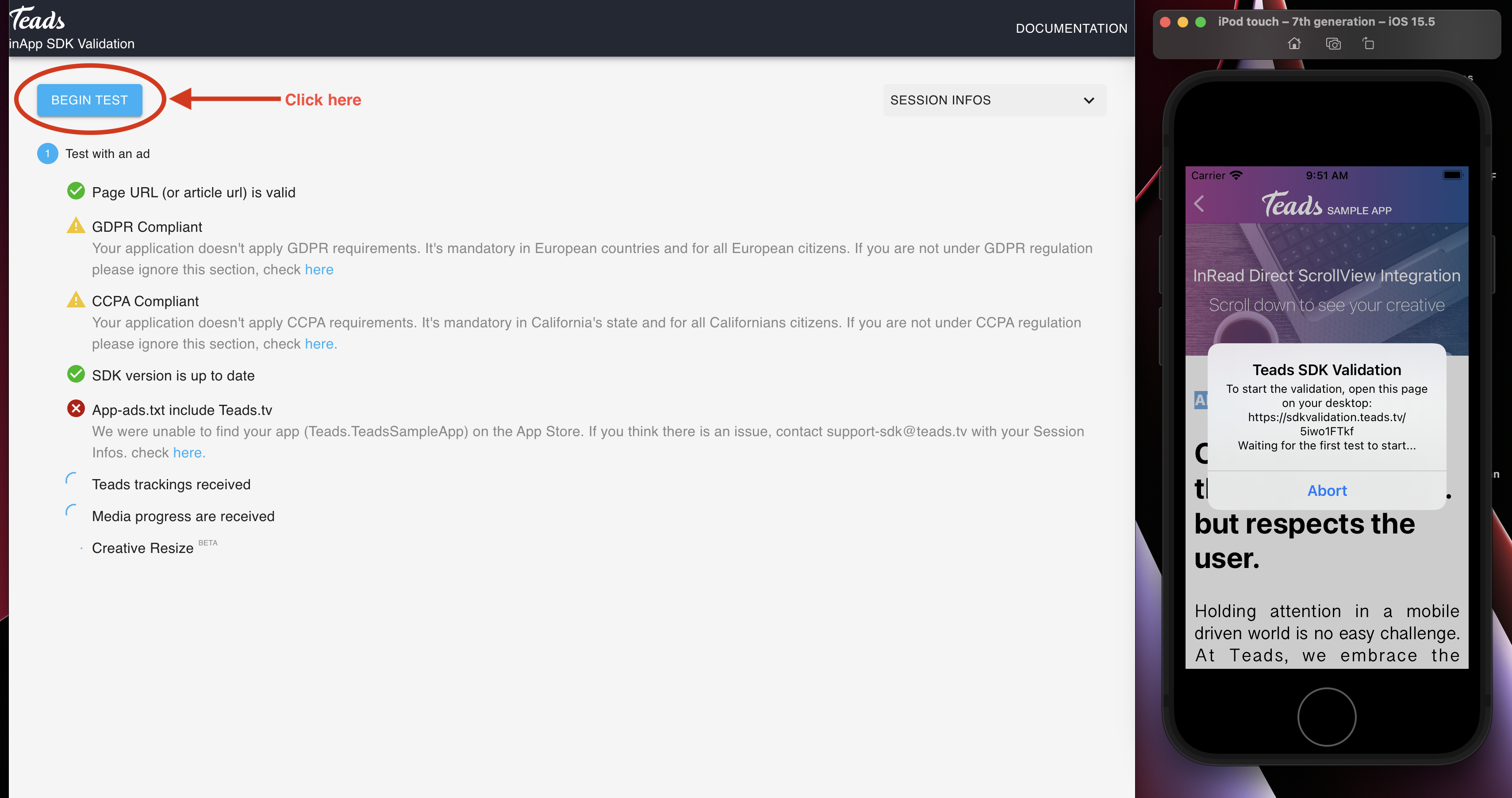
- Scroll down to the ad location in your app
- Wait for the ad to finish
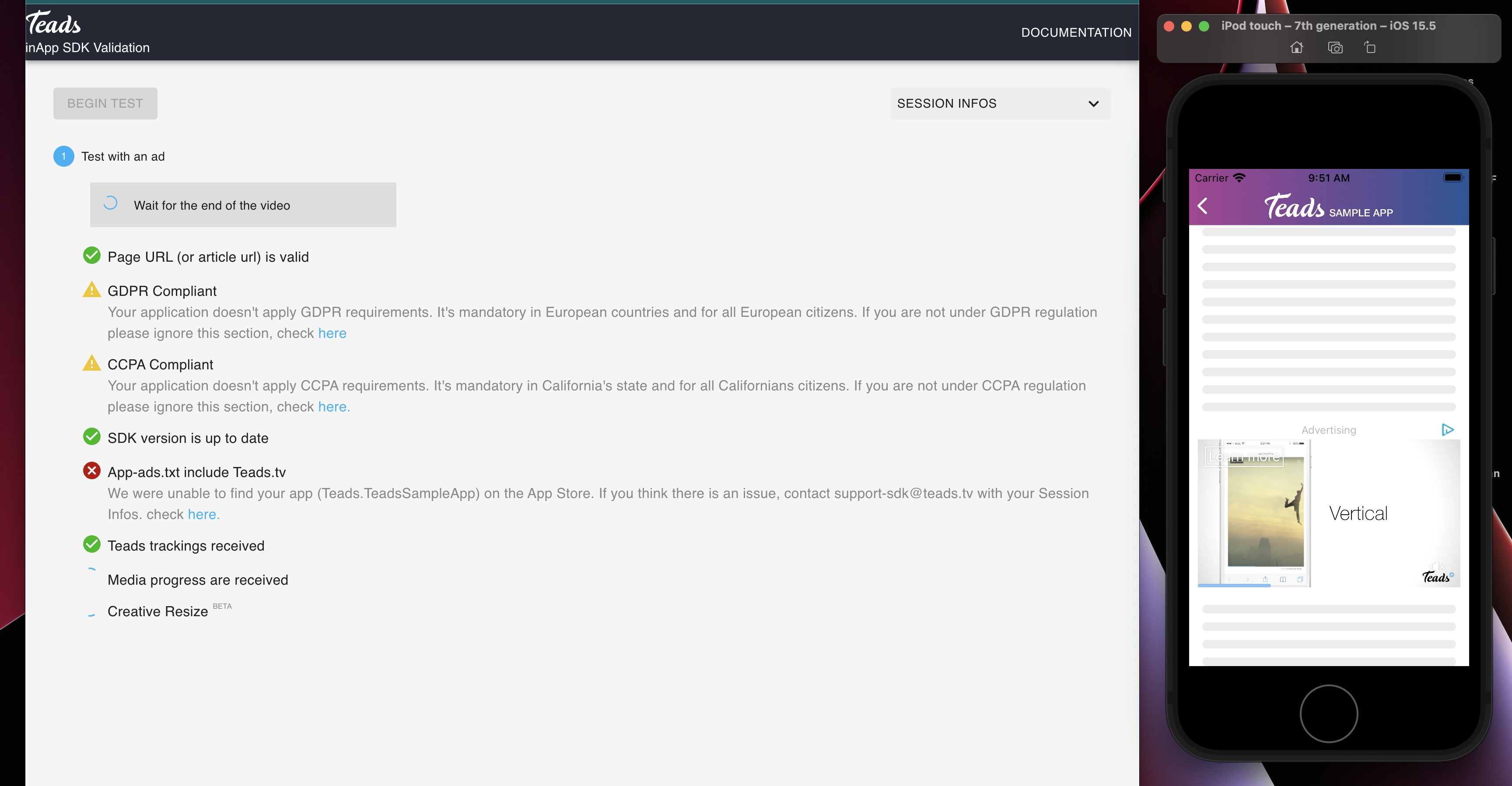
5. In less than a minute, the following checks should be verified:
- ✅ Page URL (or article URL) is valid - The page or article URL used for brand safety purposes is provided. This is only required for publishers displaying articles (news)
- ✅ GDPR-compliant, CCPA Compliant, GPP Compliant - The user consent signals are provided. This is only required if you are distributing your app where user consent regulations apply
- ✅ SDK version is up to date - The SDK version used is the latest available
- ✅ App-ads.txt includes Teads.tv - The app-ads.txt is properly available on your website provided in the app store
- ✅ Teads tracking is correctly sent and received - The ad lifecycle events are properly computed
- ✅ Media playback is completed successfully - The ad plays until the end
- ✅ Creative Resize - The creative is resized correctly
Validation Error List
Please find below the list of errors that could be detected by the Validation Tool. Each one of them can be solved with instructions detailed below.
Table of Contents
- 1. App Store Issues
- 2. App-ads.txt Issues
- 3. Consent Issues
- 4. Brand Safety Issues
- 5. Tracking Issues
- 6. Visibility Issues
1. App Store Issues
1.1 We were unable to find your app on the Google Play Store. If you think there is an issue, contact your dedicated Partner Manager with your Session Info.
Your app defines a package name reverse domain as com.domain.myapplication. If the package name is not found on public stores, this could mean two things:
- The app is not released yet on the store
- The app is using a test package name
- Your package name is not properly set on our side
1.2 We are not able to find your Developer Website from Google. Did you fill the Developer URL on Google Play?
You need to specify the URL pointing to your website in the store developer website section, the same website that hosts your app-ads.txt.
1.3 We found your developer URL but were not able to find a proper URL to crawl.
App Ads Crawler encountered a problem scanning your website. Make sure your website is publicly available and not behind a firewall.
2. App-ads.txt Issues
2.1 We are not able to find your app-ads.txt file. It may not exist, or the server may not be configured correctly. You can find more information on the IAB App Ads txt Specs. This could be due to app-ads.txt hidden by redirection on your server.
The app-ads.txt file can't be found on the specified website URL (Store). Make sure it is available publicly.
2.2 We found your app-ads.txt but it did not include Teads. Contact your Teads Publisher Manager for more info. Also, "teads.com" is not a valid domain.
Contact your Publisher Manager to double-check if you have the correct portion to be added to the app-ads.txt file.
3. Consent Issues
3.1 The consent string is empty / seems to be wrong / is not formatted correctly / cannot be parsed
The user consent signal is not specified correctly. Make sure to set it to AdPlacementSettings. For detailed privacy and compliance configuration, see the Privacy & Compliance page.
3.2 The consent string is missing some data, there is probably something wrong with the CMP you are using / We did not get any response from your CMP
Your CMP doesn't set the consent string respecting IAB specifications CMP Internal Structure.
4. Brand Safety Issues
4.1 You need to pass the page URL to Teads SDK. This may be the sharing URL from a given content (article, sport result). This URL should be available from any country.
If applicable, specify the pageUrl relative to the content, for instance .pageUrl("https://mysite.com/specificArticleContent"). Make sure to set it to AdRequestSettings (Android).
5. Tracking Issues
5.1 Tracking has not been received.
Make sure you are not running a proxy or VPN on your device/simulator.
6. Visibility Issues
6.1 Make sure the ad is visible on the screen. If you can see the ad, but it does not start check your console logs for more information, it could be due to an overlay.
The ad should be fully visible to run tests. Maybe content overlays the ad, or the ad size is too low: undersized ads will be considered not visible/displayed. Double-check the Prerequisites & Setup Checklist page and the Troubleshooting Guide for detailed visibility solutions.
6.2 You need to wait for the end of the video, so we can check that the ad played entirely.
Wait for the video progress to complete.
Support
For questions about the Validation Tool or to report issues:
- Technical Support: Support